
Chase and Google Pay®
Add your Chase card for a secure way to pay on-the-go.
Check out with Chase and Google Pay and enjoy the same protection and benefits you always get with your card.
Shop securely
When you use your Chase card with Google Pay, you can be confident knowing your purchases and account information are protected.

Fraud monitoring
We monitor for fraud 24/7 and can text, email or call you if there are unusual purchases on your credit card.

Unlock your phone
Almost all purchases require you to unlock your phone.

Card number not shared
Your card number is never shared with the merchant or stored on your device.
Where and how to use Google Pay
It’s easy to use your Chase Visa® or Mastercard® with Google PayOpens overlay in stores, in apps and online.

In stores
Unlock your phone, hold it near the terminal, and look for the check mark to confirm when the payment is done.

In apps and online
Select Google Pay at checkout. Choose your Chase card when you tap on the Buy with Google Pay button or use Chrome Autofill and check out without having to enter your payment information.
Look for the Contactless and Google Pay symbols at checkout
Accepted cards
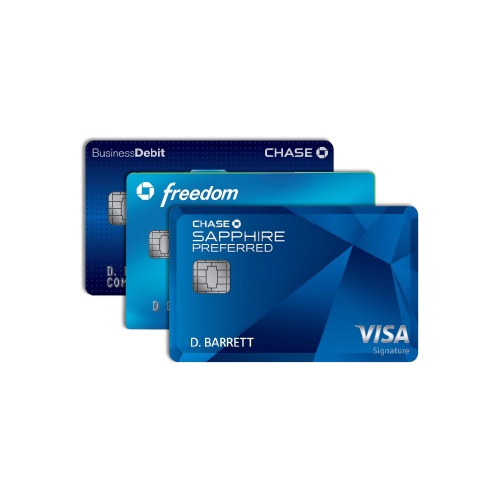
Most Chase credit and debit cards are accepted in Google Pay.
Frequently asked questions
Google Pay provides owners of Android® devices the ability to use their Android phone to make in store, in-app and online payments using an eligible Chase credit or debit cards.
Google Wallet may be preloaded on select devices. If your device does not have the app, simply download it from Google PlayOpens overlay.
Google Wallet requires that you sign-into your Google account before you register any credit/debit cards. During setup of Google Wallet, you will be prompted to create an Google Wallet PIN, pattern, or password. For select devices running Google Marshmallow 6.0 or later, you may use your fingerprint to verify transactions.
Once your eligible Chase card is registered to Google Wallet, you may select Google Wallet as your default wallet. Settings vary by device manufacturer and model, so if you need help setting Android Pay as the default option for making mobile payments, please contact your mobile service provider. Once Android Pay is the default wallet, paying is as simple as unlocking your device and holding the device up to the NFC contactless reader at the POS. Ensure that your Chase card is set to the default card.
Google Wallet will indicate that you are ready to make a payment.
For NFC Contactless Payments:
- Hold the phone above the NFC contactless reader on the payment terminal
- The two devices should be almost touching
In the event you are asked to provide the last 4 digits of the card when you make an Google Pay transaction, you should provide the merchant with the last 4 digits of the device account number or token, as that was the account number used in the purchase. You can locate the last 4 digits of the device account number in the Google Wallet app on the Card details associated with the card you are using for your purchase, just tap on the card image to access the number.
There is no cost to use Google Pay from Chase; however, an active data plan with a mobile carrier is required. Based on your wireless plan and mobile carrier's offering, additional message and data charges may apply. Your credit card terms and conditions or your debit card Deposit Account Agreement will apply for purchases. Chase does not charge any fees to add your credit or debit cards to Google Wallet.
If your card is authorized for international purchases, and you are visiting a country where Google Pay is available, you can use Google Pay to make purchases at retailers that accept contactless payments. Based on your wireless plan and mobile carrier's offering, additional message data charges may apply. Foreign transaction fees may apply if applicable to your wireless plan and your credit card account.
This service is not currently available.
Near Field Communication (NFC) is a short-range wireless technology that allows two devices to exchange payment information quickly and conveniently at close proximity. Google Pay uses NFC technology to transmit payment information from your phone to the contactless payment terminal.
Many Chase Visa® consumer credit or debit cards work with Google Pay. Follow the instructions for adding your card to Google Pay (see Q&A: How do I add my Chase cards to Google Pay?). Call the number on the back of your card to see if it is eligible for Google Pay or check eligible cards. If you attempt to add a card that isn’t supported, Google Pay will display a message informing you that the card is ineligible. Contact Chase if you have questions about card eligibility.
When you add your Chase credit, debit or Chase Liquid card to Google Pay, the number on your card is replaced with a secure device account number (also called a token). This token is passed onto the merchant for payment instead of your actual card number.
The first card added in Google Wallet would be the default card for payment. It will show as the first card in the list at the top of the screen. The default card will also be noted with "default card”. To change your default card, select the card that you would like to make the default, and click "set as default”.
You can add your card to multiple Google Pay devices. For security purposes, your One Time Passcode will always be sent to the primary cardholder.
When in the Google Wallet app, you can touch your card to view the Card details, and also select remove card option.
Any eligible credit/debit card can be used with Google Pay, even chip/signature cards. Keep in mind that Google Pay uses a digital version of your account, and is distinct to how you use your physical plastic cards, which remains unchanged.
Google Pay can be used with any merchant whose terminal can accept NFC contactless payments.
Many Chase Visa® consumer credit or debit cards work with Google Pay. Follow the instructions for adding your card to Google Pay (see Q&A: How do I add my Chase cards to Google Pay?). Call the number on the back of your card to see if it is eligible for Google Pay or check eligible cards. If you attempt to add a card that isn’t supported, Google Pay will display a message informing you that the card is ineligible. Contact Chase if you have questions about card eligibility.
When you add your Chase credit, debit or Chase Liquid card to Google Pay, the number on your card is replaced with a secure device account number (also called a token). This token is passed onto the merchant for payment instead of your actual card number.
The first card added in Google Wallet would be the default card for payment. It will show as the first card in the list at the top of the screen. The default card will also be noted with "default card”. To change your default card, select the card that you would like to make the default, and click "set as default”.
You can add your card to multiple Google Pay devices. For security purposes, your One Time Passcode will always be sent to the primary cardholder.
Separate contact information exists for Credit Card and Personal Banking accounts.
- Credit Card: If your card has been lost, stolen or damaged, call us immediately at 1-800-432-3117. Go to chase.com/customerservice for call center hours.
- Personal Banking: If your card has been lost, stolen or damaged, call us immediately at 1-800-935-9935. Go to chase.com/customerservice for call center hours.
We accept operator relay calls.
When in the Google Wallet app, you can touch your card to view the Card details, and also select remove card option.
Any eligible credit/debit card can be used with Google Pay, even chip/signature cards. Keep in mind that Google Pay uses a digital version of your account, and is distinct to how you use your physical plastic cards, which remains unchanged.
Google Pay can be used with any merchant whose terminal can accept NFC contactless payments.
Additional digital payment options
Esta página contiene información acerca del uso de Chase Visa® y Mastercard en billeteras digitales. Si tienes alguna pregunta, por favor, llama al número de teléfono que está al reverso de tu tarjeta