
Chase and Apple Pay®
Add your Chase card for a secure way to pay on-the-go.
Check out with Chase and Apple Pay and enjoy the same protection and benefits you always get with your card.
Shop securely
When you use your Chase card with Apple Pay, you can be confident knowing your purchases and account information are protected.

Fraud monitoring
We monitor for fraud 24/7 and can text, email or call you if there are unusual purchases on your credit card.

Biometric identification
With Face ID or Touch ID, only you or your registered users can approve a purchase.

Card number not shared
Your card number is never shared with the merchant or stored on your device.
How to add your card to Apple Pay
Have your Chase credit card ready — it only takes a few seconds.
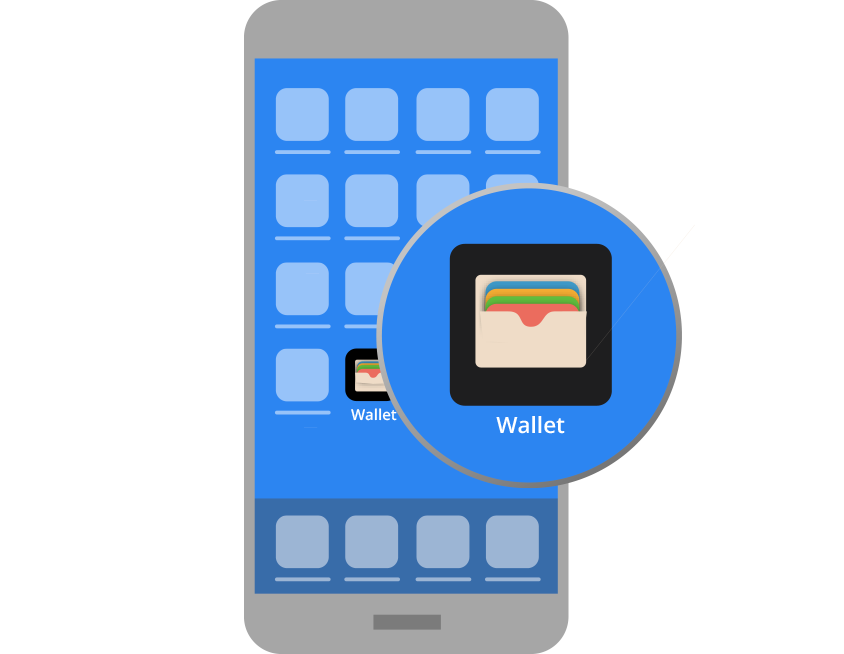
1. Open
Open the Wallet app on your iPhone.
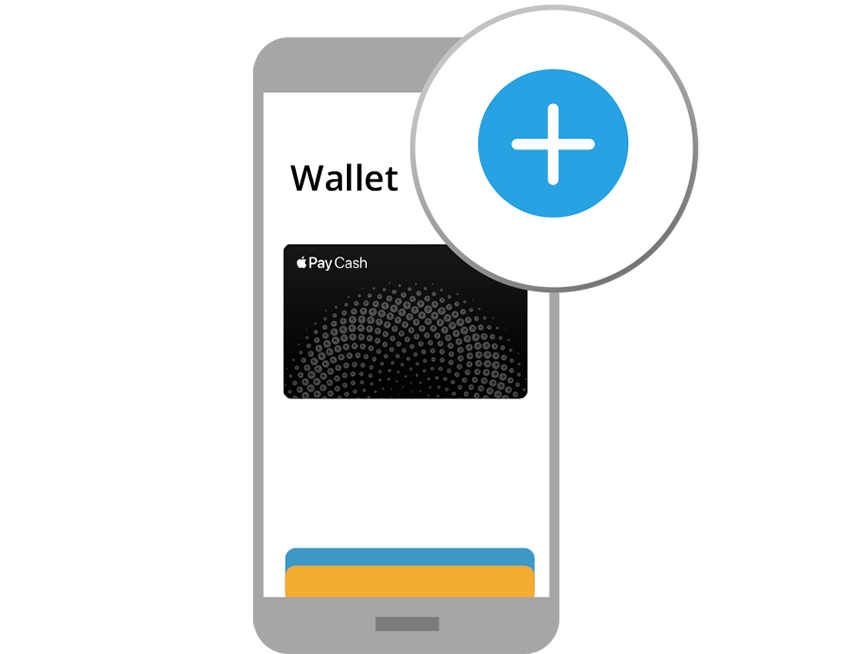
2. Tap
Tap the Add button in the upper-right corner.
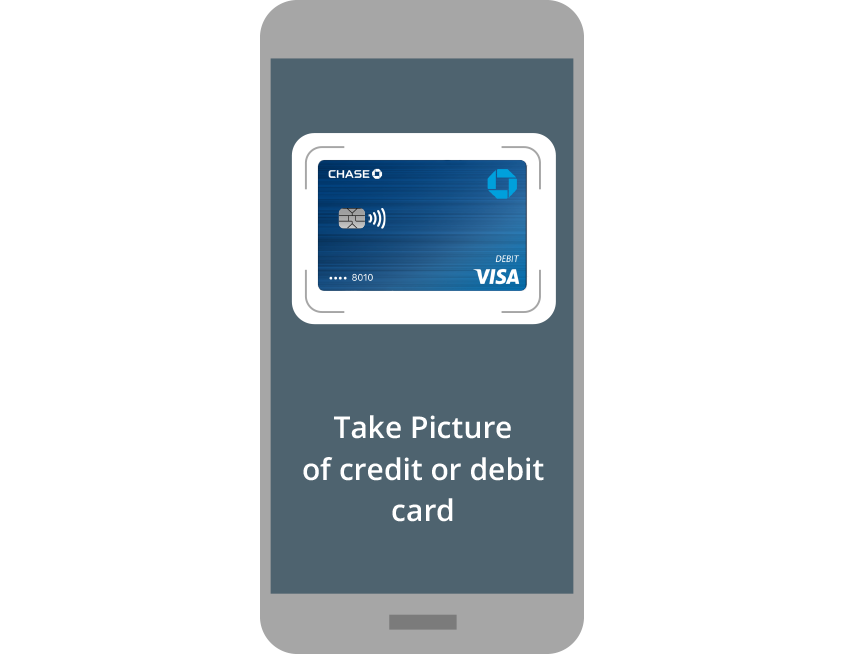
3. Snap
Snap a pic of your card or enter the details manually.
How to make your Chase card your default card
Automatically get all the benefits of your Chase card every time you use Apple Pay.
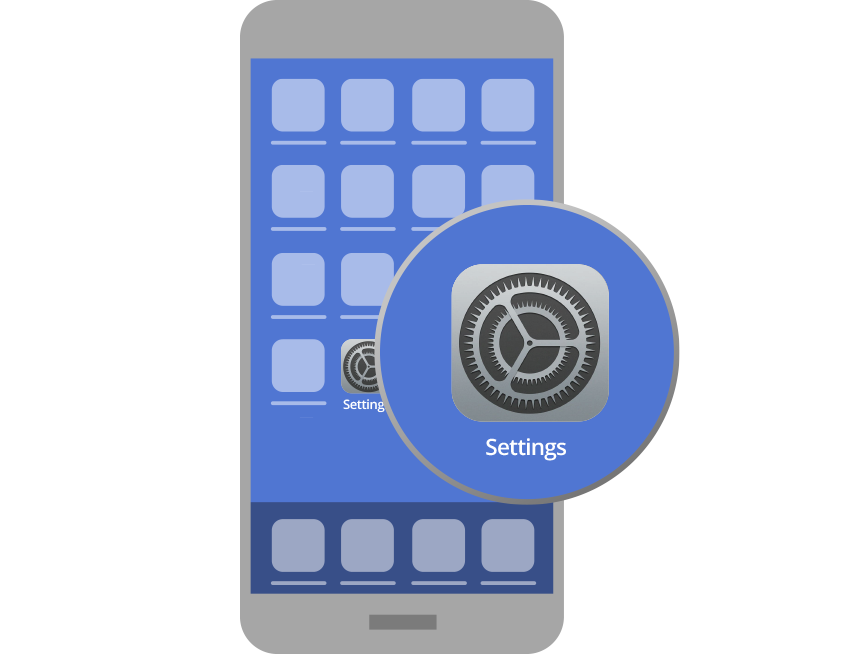
1. Open
Open the Settings app on your iPhone.
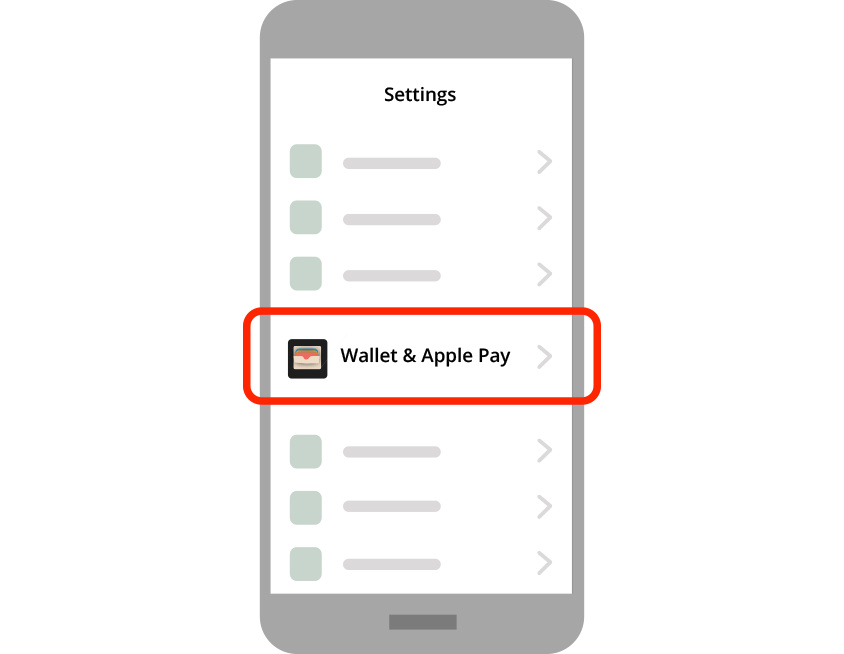
2. Tap
Tap “Wallet & Apple Pay” and scroll down to "Default Card."
3. Choose
Choose your Chase card and you're all set.
Where and how to use Apple Pay
It’s easy to use your Chase Visa® or Mastercard® with Apple PayOpens overlay in stores, in apps and online.

In Stores
Face ID: Double-tap the side button, glance at the screen, and hold the phone near the reader.
Touch ID: Rest your finger on Touch ID and hold the phone near the reader

In apps and online
Choose Apple Pay at checkout and complete the payment with Face ID or Touch ID.
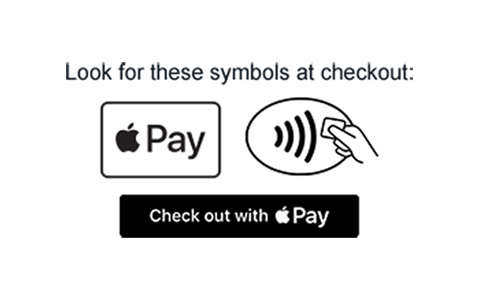
Look for the Contactless and Apple Pay symbols at checkout
Accepted cards
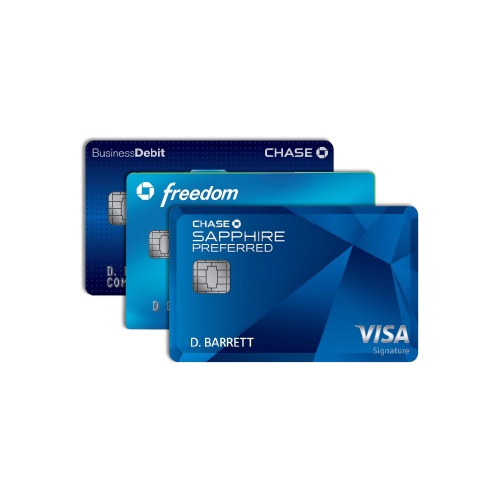
Most Chase credit cards are accepted in Apple Pay.
Frequently asked questions
Apple Pay is a payments feature integrated into the Wallet® app on your iOS device that lets you add your credit cards to Apple Pay to make purchases at participating retailers in stores, using Near Field Communication (NFC) technology, or in app.
To add your eligible Chase credit cards to Apple Pay, follow the instructions aboveOpens overlay. Apple Pay provides the same benefits and protection as your physical card, with the convenience of making secure transactions on your iOS device. Use Apple Pay anywhere contactless payments are accepted in app or online with participating apps or sites.
Apple devices with biometric identification like Face ID and Touch ID except iPhone 5s. For more information on compatible devices go to Apple Pay SupportOpens overlay.
To use Apple Pay on your iOS compatible device (iPhone, iPad, Mac, Apple Watch) in stores, in app, or online, look for one of these symbolsOpens overlay.
For detailed instructions on how to use Apple Pay with each device go to Apple Pay SupportOpens overlay.
There's no cost for Apple Pay from Chase; however, an active data plan is required. Based on your wireless plan and mobile carrier's offering, additional message and data charges may apply. Your credit card terms and conditions will apply for purchases. Chase doesn't charge any fees to add your credit cards to Apple Pay.
As long as you're shopping at a participating retailer, Apple Pay will work outside of the U.S. Based on your wireless plan and mobile carrier's offering, additional message data charges and foreign transaction fees may apply.
Near Field Communication (NFC) is a short-range wireless technology that allows two devices to exchange payment information quickly and conveniently at close proximity. Apple Pay uses NFC technology to transmit payment information from your phone to the contactless payment terminal.
Many Visa® and Mastercard® credit cards work with Apple Pay. Call the number on the back of your card to see if it's eligible for Apple Pay or check eligible Chase cards.
When you add your Chase credit cards to Apple Pay, the number from your plastic credit card is replaced with a secure device account number (also called a token). This token is passed onto the merchant for payment instead of your actual card number.
To change your default card, go to Settings on your device, then choose Wallet & Apple Pay and you may then choose your default card.
You can add your card to multiple Apple Pay wallets. However, for security purposes, your activation code will always be sent to the primary cardholder.
Open the Wallet app on your Apple device, choose the card you wish to remove and tap the option to remove. For Mac devices go to System Preferences, then Wallet & Apple Pay. For more information go to Apple Pay SupportOpens overlay.
You can add multiple Chase credit cards to Wallet for use with Apple Pay on multiple devices.
You can add any eligible Chase credit card to Wallet for use with Apple Pay, including cards that you may have already loaded into other digital wallets.
Apple Pay is locked when the device is locked. A device passcode or biometric verification (Face ID or Touch ID) is required per transaction in order to use Apple Pay.
A device account number (token) is a substitute account number that replaces your card number and is used to make secure purchases in stores and in app. A device account number won't work outside of the secure payment environment.
Purchases made with your Chase credit cards have Chase Zero Liability Protection for any unauthorized card transactions. This means that you won't pay for any unauthorized transactions as long as they are reported promptly. Certain limitations apply. Please see your cardholder agreement for complete details.
Separate contact information exists for Credit Card and Personal Banking accounts.
Credit Card: If your card needs to be replaced, please see instructions on how to do so here.
We'll send you a replacement card that will arrive within 3-5 days. If you ordered your card more than 5 days ago, please call us using the number on your statement. We accept operator relay calls.
If your card is lost or stolen, you can lock your card through the Chase mobile app and continue to use your card on Apple Pay.
Whether your card is replaced because it's lost or stolen, or if the card has expired, in most cases your new card will be automatically updated in the Wallet app with your new card number, before you receive the replacement in the mail. If, for some reason, Chase couldn't re-add your new card to the existing Digital Account Number (Token), you'll see a notation in the Wallet App that the card isn't active for use. You can then re-add your card, as you did initially to make it active again.
You can make a return the same way you would with your plastic card today by contacting the merchant directly. We do recommend you bring the device that you used when returning items purchased with Apple Pay.
Additional digital payment options
Esta página contiene información acerca del uso de Chase Visa® y Mastercard en billeteras digitales. Si tienes alguna pregunta, por favor, llama al número de teléfono que está al reverso de tu tarjeta