
CONTACTLESS PAYMENTS
Tap to Pay on phone
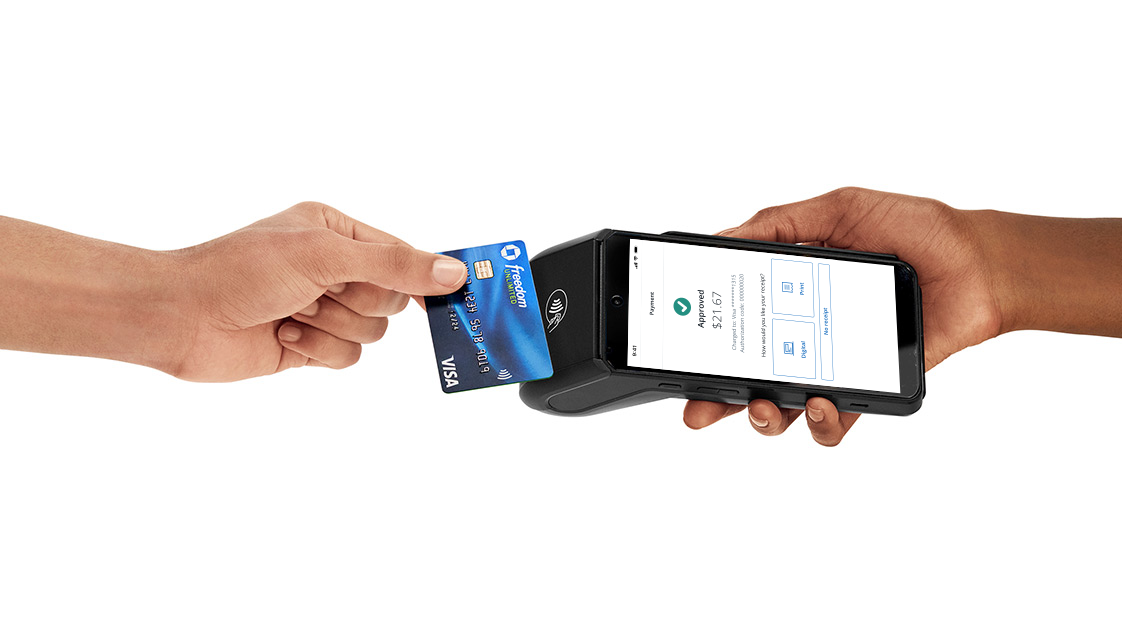
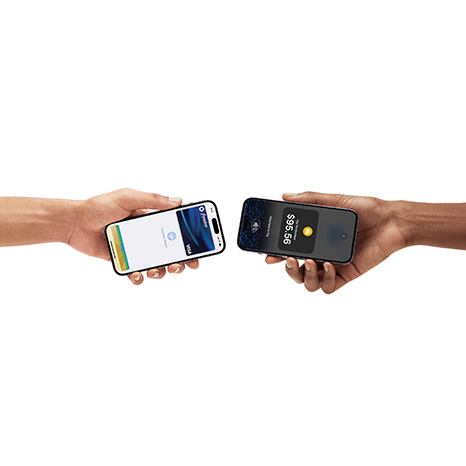
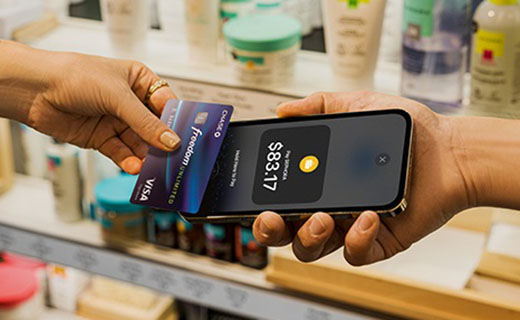
Now you can accept contactless cards, Apple Pay® and other digital wallets using your iPhone or Android device — no additional hardware required.
Plus, get deposits as soon as same day at no additional cost.
Exclusively available through your Chase Business Complete Banking® account.
Accept in-person payments with only your phone
No additional hardware needed
Take contactless payments on your phone anytime, anywhere in the U.S.
Easy to set up
Simply activate Chase QuickAccept®, and sign in to your Chase Point of Sale (POS) app.
Secure and reliable
Chase’s fortress-level security and Fraud Protection Services helps make payments more secure.
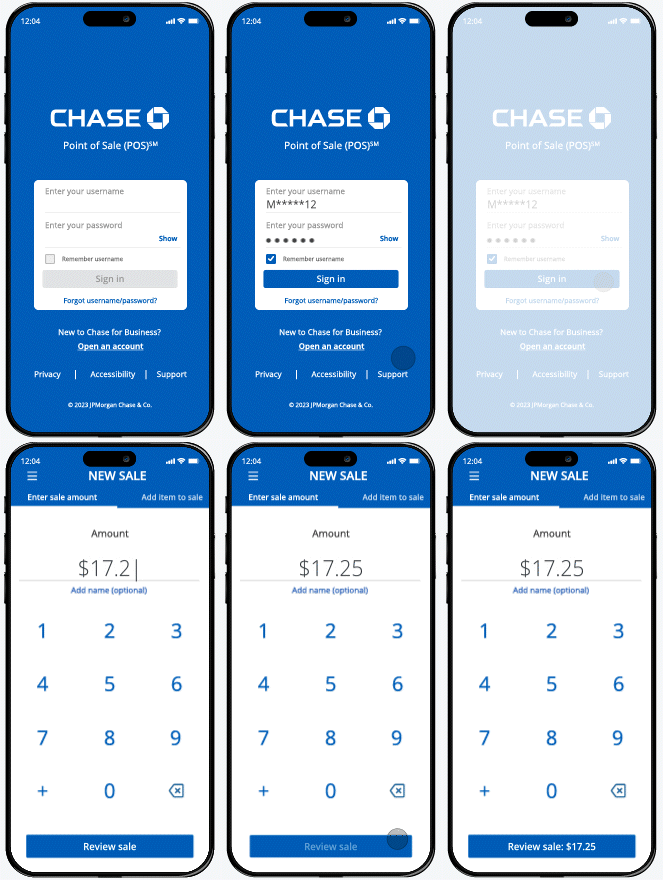
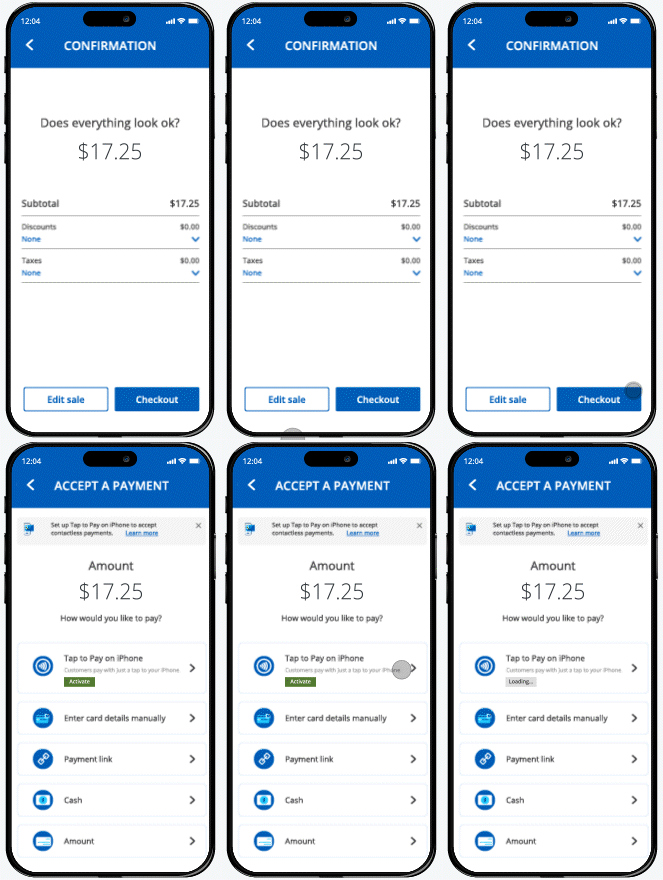
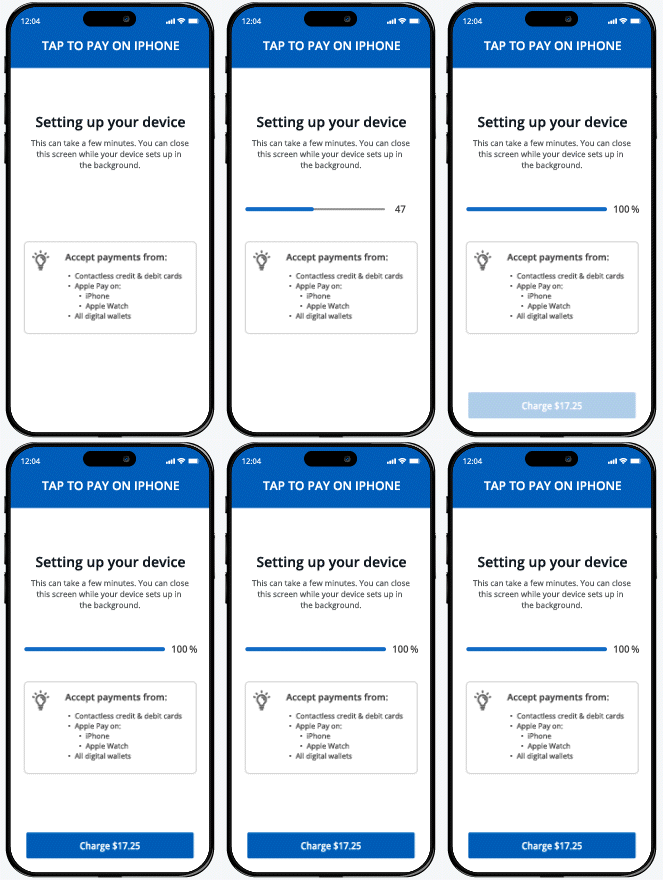
Get started with Tap to Pay on phone in a few simple steps
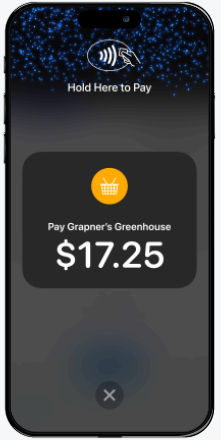
Sign in to the Chase POS app* and start a sale on your phone
*Make sure to first activate QuickAccept.
To use Tap to Pay on iPhone in the Chase Mobile® app, follow these steps on the "Getting started" tab.
Actual screens may differ depending on your device.
“Tap to Pay on iPhone is just so easy. It leaves a good impression on my clients and sets me apart from similar business owners.”
Chelsea LaFond
Owner, Limb by Limb Therapeutics
Customers were told in advance they may be featured in an ad.

Fair and transparent pricing
No hidden or monthly fees
Pricing rates
- 2.6% + 10 cents for transactions using Tap to Pay on phone
Chase POS app
- Activate QuickAccept and download for free


Unparalleled value when you process with Chase
Payments and banking
Secure card payment acceptance, business banking and tools — all in one place.

Fast funding
Get faster access to cash with deposits as soon as same-day at no extra cost.

Flexible payments
Enjoy flexibility, accepting payments whether you sell on-the-go, in-store or online.

Be ready for every sale — get paid wherever your business takes you
On-the-go
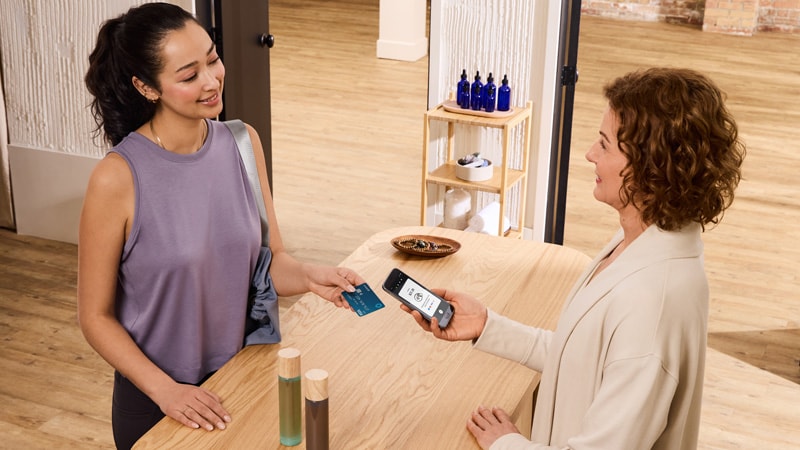
From pop-up markets to house calls, accept contactless payments anytime, anywhere with only your phone.
In-store
Get out from behind the counter — use your phone to take customer payments in line or as you serve them.
Curbside pickup
Reduce checkout times and deliver better service by using your phone to take payments at your customer’s car.
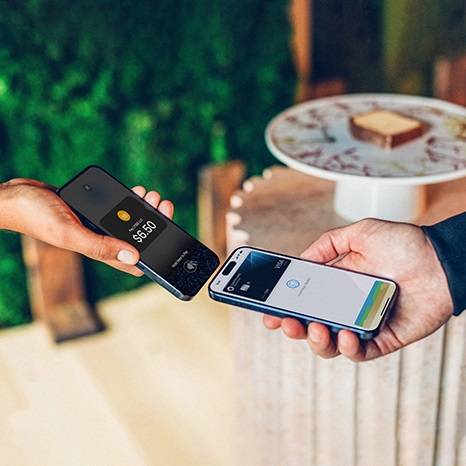
Tap into the power of easy, contactless payments — no matter your business

How Shanice Sampson is making her (beauty) mark on the skincare industry

What is Tap to Pay on iPhone?
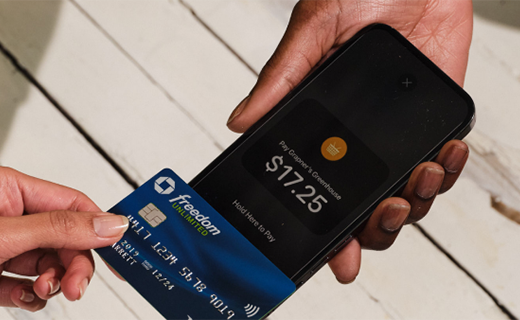
Five ways to improve the checkout process with Tap to Pay on iPhone

FAQ
With Tap to Pay on phone, you can accept all types of in-person contactless payments right on your phone — no extra readers or hardware needed.
A Chase Business Complete Banking account is required to use Tap to Pay on phone. Open an account to get started.
Once you open an account, the Chase QuickAccept feature must also be enabled in Chase Business Online or the Chase Mobile app. Follow the steps on this page to enable QuickAccept.
- Sign in to your account using Chase Business Online or Chase Mobile app
- Select your Chase Business Complete Checking Account
- Choose "Accept" or "Accept Card Payments"
- Review the Terms of Service, then choose "Activate now"
- Activation complete — you're ready to start accepting card payments right away
For more help, please visit our QuickAccept support site.
For Chase POS app users:
- Make sure you have activated QuickAccept first. Sign in to Chase Business Online or Chase Mobile app, select your Chase Business Complete Banking account, choose "Accept" or "Accept Card Payments" and follow the prompts to enable QuickAccept.
- Log into your account using the Chase POS app on your iPhone.
- Start a new "Sale."
- On the payment options screen, select the "Tap to Pay on iPhone" option.
- Follow the prompts to get started.
- Once the activation is complete, you will be able to use "Tap to Pay on iPhone" as your payment option.
For Chase Mobile app users:
- Sign in to the Chase Mobile app on your iPhone.
- Select your Chase Business Complete Banking account or your Chase Payment Solutions® account.
- Select "Accept."
- Select "Accept a card payment."
- On the new sale screen, select the "Tap to Pay on iPhone" option.
- Follow the prompts to get started.
- Once the activation is complete, you will see the option to use "Tap to Pay on iPhone" each time you begin a new transaction.
After activating QuickAccept on your account, follow these steps in the Chase POS app:
- Log in to your account using the Chase POS app on your Android device.
- Start a “New sale” using your “Cart.”
- On the payment methods screen, choose “Tap to Pay on Android.”
- Choose “Activate now” on the pop-up below.
- Wait a few minutes for activation to complete and continue with checkout.
Note: Once Tap to Pay on Android is activated in the Chase POS app, you’ll be able to use it as a payment option. If a user deletes the app and re-installs it from the Google Play store, Tap to Pay on Android will need to be reactivated from the “Accept a payment” screen.
For Chase POS app users:
- Log into your account using the Chase POS app on your iPhone.
- Start a new "Sale".
- On the payment options screen, select the "Tap to Pay on iPhone" option.
- Present the iPhone to your customer.
- Your customer taps their contactless card or digital wallet at the top of your iPhone, over the contactless symbol.
- When you see the "done" checkmark, the transaction is complete and you can select one of the receipt options.
For Chase Mobile app users:
- Sign in to the Chase Mobile app on your iPhone.
- Select your Chase Business Complete Banking account or your Chase Payment Solutions account.
- Select "Accept".
- Select "Accept a card payment".
- Enter the transaction details.
- Select "Tap to Pay on iPhone".
- Present the iPhone to your customer.
- Your customer taps their contactless card or digital wallet at the top of your iPhone, over the contactless symbol.
- When you see the "done" checkmark, the transaction is complete and you can send your customer a digital receipt.
For Chase POS app users:
- Start a new sale.
- Enter the sale amount or add items from your catalog to your cart.
- Choose “Tap to Pay on Android” if already enabled or choose “Pay now” to proceed to methods of payment.
- If your app has no card reader paired and Tap to Pay on Android is activated, it will be available as a fast checkout payment option on the “New sale” screen. This will allow you to use Tap to Pay on Android right after adding items to your cart or entering a sale amount.
Note: If adding items from your catalog, you can review your cart before checking out.
Note: Tap placement may vary across devices. Try processing a test transaction first.
Tap to Pay on iPhone is supported on iPhone XS or later, and requires the latest version of iOS. Android devices with near-field communication (NFC) technology and Android 11 or above are compatible. Not sure if you have NFC? Go to your device settings, search for “NFC” and turn it on. If the option is not available, then your device cannot use Tap to Pay on Android.
There are no additional fees for merchants to use Tap to Pay on phone.
Our credit card processing rates for using Tap to Pay on phone is 2.6% + 10 cents per transaction.
Visit our Tap to Pay on iPhone or Tap to Pay on Android support page for more information.