
Chase Merchant Services fees: Understanding what you pay for
Merchant account fees can be found on your statement. This guide walks you through each pricing detail so you can get a better breakdown for your business.
Note: The statements shown here are for Merchant Services accountholders. If you use the Chase Point of Sale (POS) system, you have a different account type. Go here for help.
What do you need help with today?
I can't find my merchant statement

You can access your merchant statements in Chase Business Online or Resource Online. After signing in, navigate to your statements section to view or download your monthly reports. For step-by-step instructions to sign in, go here.


I see a fee or adjustment I don’t recognize

Merchant statements may include processing fees, monthly service fees, refunds, or other adjustments related to card transactions. Review the Charges and fees or Financial adjustments section of your statement to see the description and amount for each item. Some fees are related to payment brands such as Mastercard, Visa, and Discover.
I need to update my business or tax information

If your Tax ID, EIN, or business information has changed, it’s important to update your merchant account details to keep your records and tax reporting accurate. submit the required documents through Chase Business Online (CBO). For more help, check out our business tax support page.

How do I receive my statements?


- By mail
- By email
- Online (recommended for fastest, most secure access)
Why choose online?
View, print or download statements anytime—no waiting, no paper, more security.
Accessing your statements
Chase Business Online
- Sign in to Chase Business Online
- Choose your account
- Click Statements below your dashboard to view up to seven years of statements
- Open or download statements using the icons on the right
- Filter by year with the dropdown menu
- To view other Chase business account statements, choose the account under Accounts on the left
Tip: Statements are typically generated on the 1st or 2nd of each month. If you don’t see one, check your delivery preferences.
Resource Online
- Sign in to Resource Online with your credentials
- Choose Recon Solution
- Click on Statements then View Statements
- If you have more than one location, click on the location you want and choose Select
- Choose the month for the statement you would like to see
- Click on the last day of that month highlighted in blue and the statement will open
- To download the statement, click the download button at the top right next to the printer icon
Tip: To find statements older than 18 months, go to Archived Statements.
Tips for reading your statement
- Check your net funding: This is the amount deposited after fees and adjustments. If it doesn’t match your sales, review the fee breakdown and adjustments
- Spot unusual fees or adjustments: If you see something unexpected, check the “Fee Breakdown” section or visit our FAQ for explanations
- Match transactions to your records: Use the transaction details to reconcile your sales and deposits
- Need help with terms? Our glossary explains common statement terms like “chargeback,” “adjustment” and “processing fee“
Reading your statement
Make sense of your statement—quickly and confidently.
Your monthly statement is designed to give you a clear overview of your account activity, including how much you processed, what you were paid, and what fees were applied. Here’s how to read and understand each section so you can easily track your payouts and account details.
Note: This is a sample U.S. statement provided for reference only—it contains no actual account data. Your statement may include more than one page for each summary section.
Cover page: shows your basic account details and any important service updates.
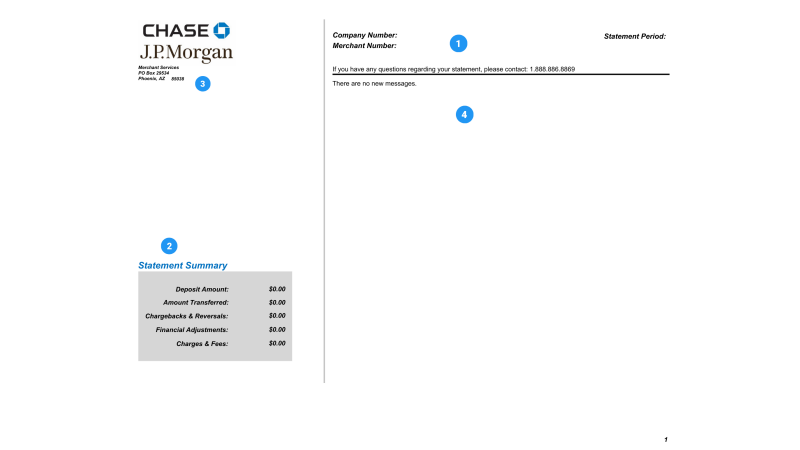
 This section shows your company number, merchant number, business name, and statement period—use your merchant number to identify the correct account if you have more than one.
 You’ll see a breakdown of your deposits and any amounts taken out here. This helps you keep track of how your business is doing and spot any patterns or changes in your transactions.
 Use this PO Box address for mailing official documents or support requests to Merchant Services.
 This section shows important service updates and account info.
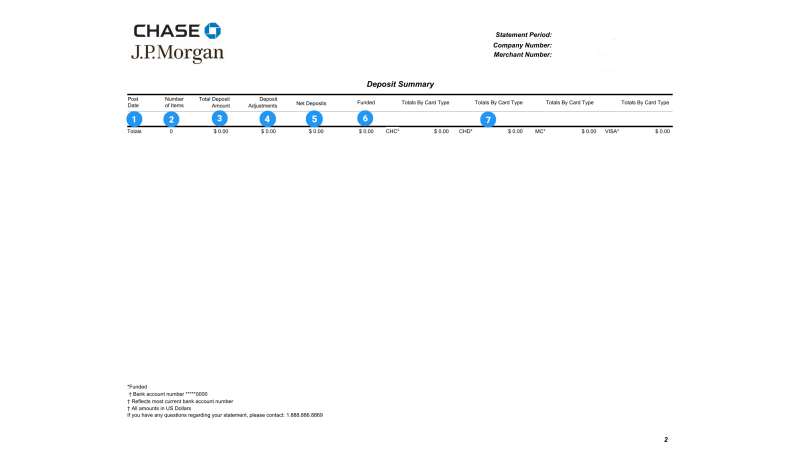
 The total deposit amount you receive after subtracting any rejected transactions.
 The final amount Chase deposited into your bank account (details in the funding summary).
 The total amount you received for each credit card type (MC , Amex, JCB...) is shown next to the card name (details in the Credit Card Summary)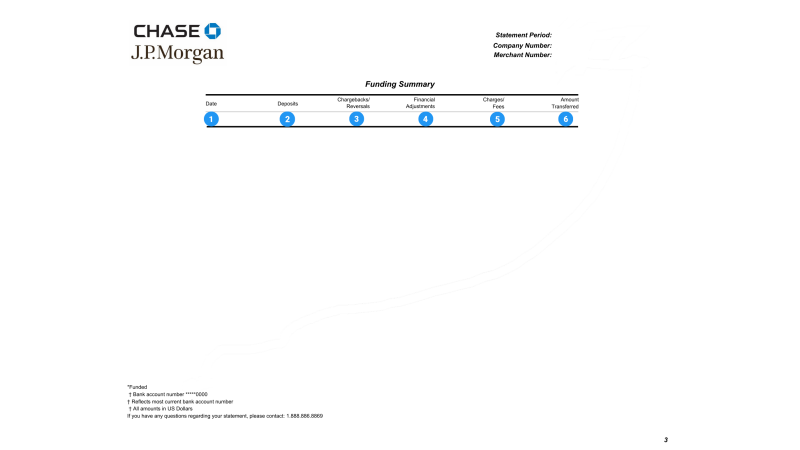
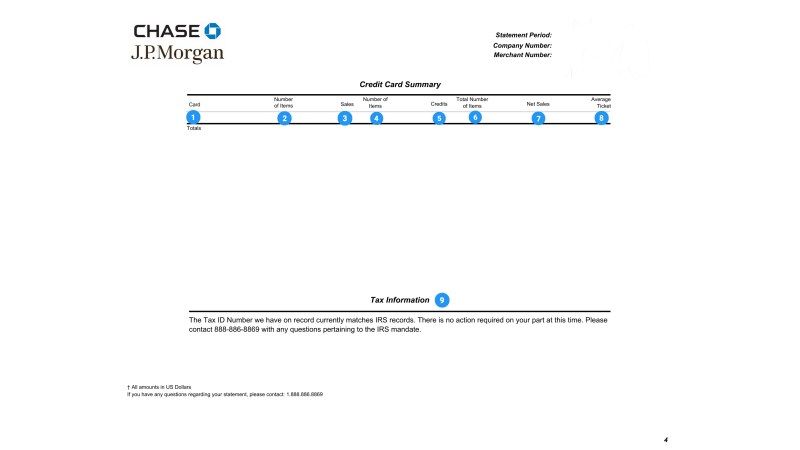
 Tells you the average amount customers spent per transaction for each card type.
 This part confirms that your tax information matches IRS records. If there’s ever a problem, you’ll get clear instructions here on what to do next.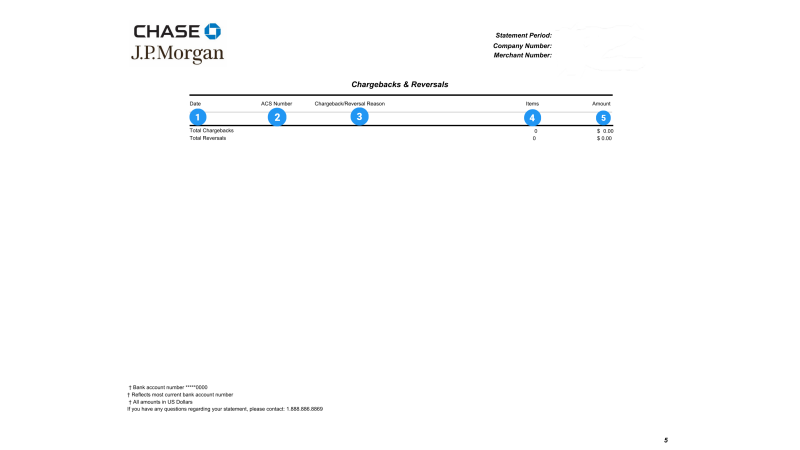
Understanding fees and adjustments
Common fee types:
- Interchange fees — Charged by payment brands like Visa and Mastercard
- Assessment fees — Set by card networks
- Access fees — For online payment gateways or tools
- Monthly fees — Account maintenance or statement delivery
- Adjustments — can occur if transactions are refunded, chargebacks are processed, or system corrections are made
Note: Cross-check your Charges and Fees summary if your deposits seem lower than expected.
Glossary of key terms
- Funding Summary — Section showing the total amount of money sent to your bank account after all fees and adjustment
- Chargeback — Happens when a customer disputes a transaction and the payment is temporarily taken back from your account
- Adjustment — Manual correction or account reconciliation entry
- Deposit Summary — Lists all the money that was deposited into or withdrawn from your account during the statement period
- Assessment Fee — A small percentage fee charged by card networks (like Visa or Mastercard) for processing card payments
- Interchange Fee — A fee charged by payment brands (like Visa or Mastercard) for each card transaction
Understanding your pricing plan
Your fees may vary depending on the card type, payment method and your pricing plan. Each plan calculates fees differently — here are the most common methods:
| Pricing plan and how it works | The fees you pay | What to expect |
|---|---|---|
| Swiped / Keyed (DRSK) : Your rate depends on how the payment is taken. |
|
|
| Interchange Pass-Through (IPT or IC+) : You pay the cost set for each transaction, plus a processing fee. |
|
|
| Flat Rate (DNBB) :
You pay a set rate for most transactions. |
|
|
| Tiered Pricing:
Transactions are grouped into categories, each with its own rate. |
Different rates for different transaction types (based on factors like card type and payment method):
|
|
Not sure which plan you have? You can find your pricing plan on the bottom left of your statement or in your agreement.
Statements and fees FAQs
Explore these FAQs to find clear answers to common questions about your statements /fees and more.
At a glance:
- Cover page: To quickly check your account details, business name, statement period and any important messages from us. It’s your starting point for every statement
- Deposit summary: To see all the money that was put into your account, along with the dates and amounts. Use this page when you want to confirm your deposits or match them to your sales
- Funding summary: It shows the total amount you actually received after fees, refunds, and other deductions. Check here if you want to know your final payout for the statement period
- Credit card summary: To see how much you sold and refunded by each card type (like Visa or Mastercard). It’s helpful for tracking which cards your customers use most and your average sale amounts
- Chargebacks and retrievals: Use this page to manage disputes—find details about money taken out for customer complaints or retrieval requests, and see why funds were removed
- Pre-Disputes: This section flags transactions that might become disputes, giving you a heads-up before money is taken out. Use it to act early and possibly prevent chargebacks
- Financial adjustments: Go here to see any corrections or changes made to your account. Use this page if you notice unexpected changes in your balance and want to know why
- Charges and fees: Go here to review all the fees you were charged, with clear descriptions and amounts. Use it to understand what you’re paying for and check for any unusual charges
Tip: Whenever you have a question about your statement—like missing money, unexpected fees, or customer disputes—start with the section that matches your concern. Each page is designed to help you find answers fast and keep your business records clear.
Delays may occur due to:
- Postal mail issues
- Incorrect email address
Note: Statements are always available online for immediate access.
The Credit Card Summary shows:
- Sales and refunds per card type
- Net Sales = Sales – Refunds
- Average Ticket = Net Sales ÷ Number of items
The Funding Summary shows daily funding, chargebacks, adjustments, and fees. Amount Transferred under Totals = net transfer to your account.
Statements are summaries. Individual transactions aren’t displayed due to size limits. All activity is available real-time online on your Chase Online account.
Think of black numbers as money coming your way—they are amounts added to your account. Red numbers (with parentheses) are money heading out—they are amounts taken from your account.
But here’s the twist:
In the Financial Adjustments and Charges & Fees sections, black means money was taken out for fees or corrections, and red means money was put back in.
So, as you look through your statement, remember:
Black usually means you got paid, red means money was taken out—except for adjustments and fees, where it’s the other way around.
The Tax Information section helps you keep your business tax details up to date and compliant with IRS rules. It shows if the Tax ID Number (TIN) we have matches IRS records and lets you know if you need to take any action. If an update is needed, simply submit the required documents through Chase Business Online (CBO). For more help, check out our business tax support page.
If you receive a chargeback or a customer disputes a transaction, visit our Disputes Support Page for step-by-step guidance. You’ll find information on how to respond, what documents you may need, and tips for resolving disputes quickly. If you need more help, our support team is here for you.
A daily statement provides a summary of your transactions and account activity for each day, giving you a quick snapshot of your business’s performance. While your monthly statement offers a comprehensive overview of all activity for the entire month, the daily statement helps you monitor and manage your finances on a day-to-day basis.
Yes, you can choose to receive daily statements in addition to your monthly statement. To opt in, simply update your statement preferences in your online account portal or contact us for assistance. We’re happy to help you set up the statement frequency that works best for your business.
If you’re updating your business name (like a DBA or trading name), our support team can guide you through the process and let you know which documents are needed. For changes to your company name due to a legal entity update, a new merchant account will be required. Please reach out to us—we’re here to help with both situations and answer any questions you may have.

Find general support on the topics that matter most to business owners like you
Access and security
Learn how to add users to your account and manage their access levels
Disputes
Gain a better understanding of disputes and chargebacks to run your business smoothly
Taxes
Get important information on filing business taxes to help your business stay compliant
Fraud
Learn how Chase helps prevent fraud and what you can do to protect your business